Understanding HTML Tags and Elements
Before jumping straight to the tags and elements in HTML, we need to know a little about the history of HTML and WWW. This will help us understand HTML in a better way rather than just cramming the tags and elements.
What is HTML? (HTML and WWW)
Let’s say I have written a blog or a research paper in a text file called research.txt. I published it on the server of hashnode.com (198.196.31.4). Now if someone wants to access my .txt file, I have to give them access to my server directly and they can fetch it via FTP. But giving direct access to my hashnode server, will increase the security risks, I might lose all my research work. Here came Tim Berners Lee (the founder of WWW) with the idea of a common URL format in which you just enter the filename name along with IP adde and the server will send it to you directly. Hence the problem of security is solved.

Moving further, WWW realised that the text files that the server returns in response are not quite readable and do not have any formatting.

Hence Tim Berners Lee again came up with a idea of a special kind of text known as the HyperText which will have proper formatting and a fixed format. A language was then invented to write this HyperText popularly known as Hyper Text Markup Language(HTML). All the servers which return a HTML document in response are called as WebServers.
HTML as skeleton of the web page ->
Analogy: Let’s consider a human body, a normal human body consists of a skeleton, organs, muscle and and skin and a brain. Each and every one these are essential for the body to function. Here the skeleton forms the basic structure of the body, skin adds the style or pleasant look over organs and muscle. But for all of this to be functional, the brain is needed which adds the consciousness the everything.
Similarly, in a typical webpage the role of skeleton is performed by HTML which in short forms the basic structure of the page. CSS adds the styling like skin and JavaScript adds functionality like the brain.

HTML tags and elements
Tags ->
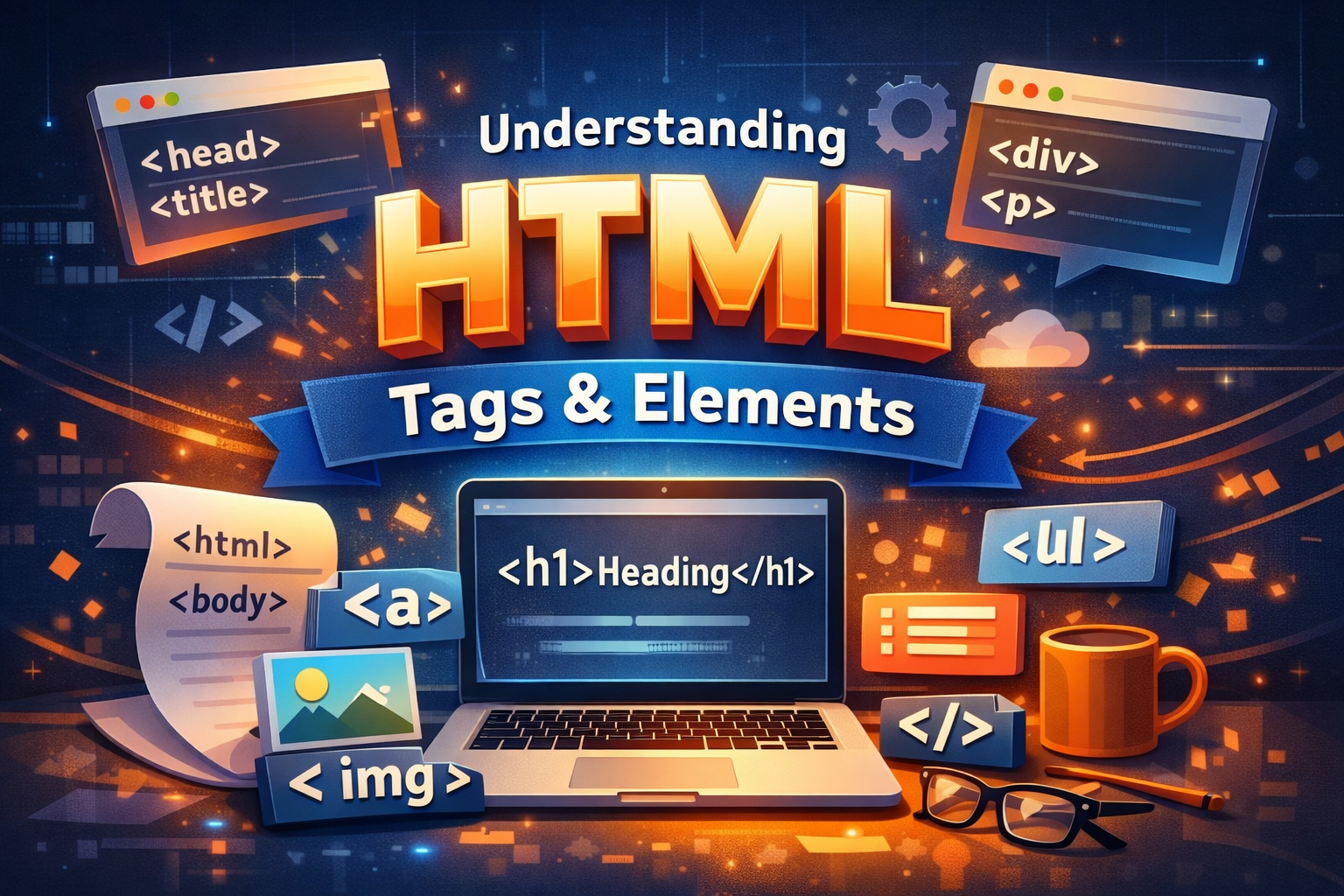
A tag in html is anything that is enclosed between < > . It tells the browser(parser) what kind data is coming after. It can be understood like a label, when we have to deliver something fragile inside of a box via post, we label the box like “handle with care“ or “fragile item inside“. By reading this someone carrying it will know that it is a fragile item. Similarly, tags are labels that tell the browser about the content inside of them. For example, a <h1> tag will says that the text inside is a big heading.
Types of Tags ->
1) OPENING TAG - These mark the opening or start of the tag. Basically, they tell the browser that a specific type of text or multimedia is to be parsed.
Examples: <p>, <h1>, <label> etc.
2) CLOSING TAG - These mark the ending or closing of the tag. There is a ‘/’ associated within the < > brackets of the closing tag.
Examples: </p>, </h1>, </label> etc.
3) SELF-CLOSING TAG - These tags do not need a closing tag to specify the end, as the name suggests they are self closing.
Examples: <img>, <input> etc.
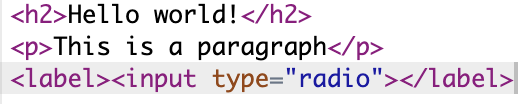
Here <h2> marks the opening of the heading “Hello world!” and </h2> marks its end. It can be seen in the 3rd line that the <input> tag does not have </input>, hence it is self closing.
Elements ->
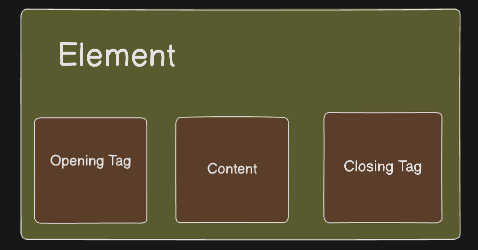
Elements in HTML are the combination of opening tag, closing tag and the content inside the opening and closing tags i.e tags are the subset of elements. In short, Element = Opening tag + Content + Closing tag.
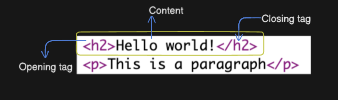
The entire thing in the yellow box above is an Element containing <h2>Hello world!</h2>.
Difference between Tag and Element :
| TAG | ELEMENT |
| Communicates to the browser about the type of content. | Contains whole of opening tag, closing tag and the content. |
| Marks the Opening and Closing of the content within. | It is a complete structure. |
| Tags are the subset of Elements. | Ex: <h2>Hello world!</h2> |
Block-Level vs Inline Elements in HTML
HTML elements are categorized based on how they occupy space and interact with other elements on a webpage. The two main types are block-level elements and inline elements.
1. Block-Level Elements
Definition:
Block-level elements occupy the full width of their parent container and always start on a new line. They can contain other block-level elements or inline elements.
Characteristics:
Start on a new line
Take up the entire width available by default
Can contain inline and block elements
Can have width, height, margin, and padding applied
Common Examples:
<div>– a generic container for grouping content<p>– paragraph<h1>to<h6>– headings<ul>/<ol>– lists<section>/<article>– semantic sections of content
Analogy: Think of block-level elements as large boxes stacked vertically, one after another.
2. Inline Elements
Definition:
Inline elements occupy only as much width as needed by their content and do not start on a new line. They flow alongside other inline elements.
Characteristics:
Do not start on a new line
Only take up space required by the content
Cannot have width or height applied directly (though padding and margin horizontally work)
Typically used for text formatting or small content inside block elements
Common Examples:
<span>– generic inline container<a>– hyperlink<strong>/<b>– bold text<em>/<i>– italic text<img>– image (self-closing but behaves inline by default)
Analogy: Inline elements are like words in a sentence, flowing naturally with the text around them.
Basic HTML Tags ->
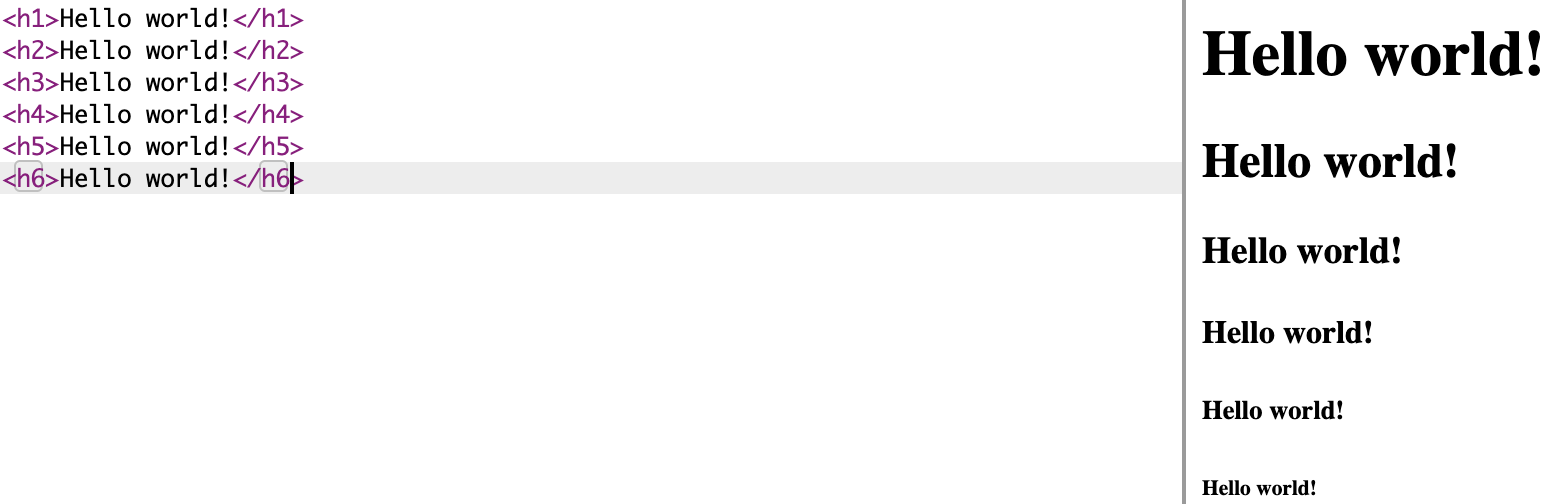
- Heading tags - There are 6 heading tags from h1 to h6 and represents the size of headings in decreasing order.
- Paragraph tag - Accounts for a paragraph or simple text.
<p></p>

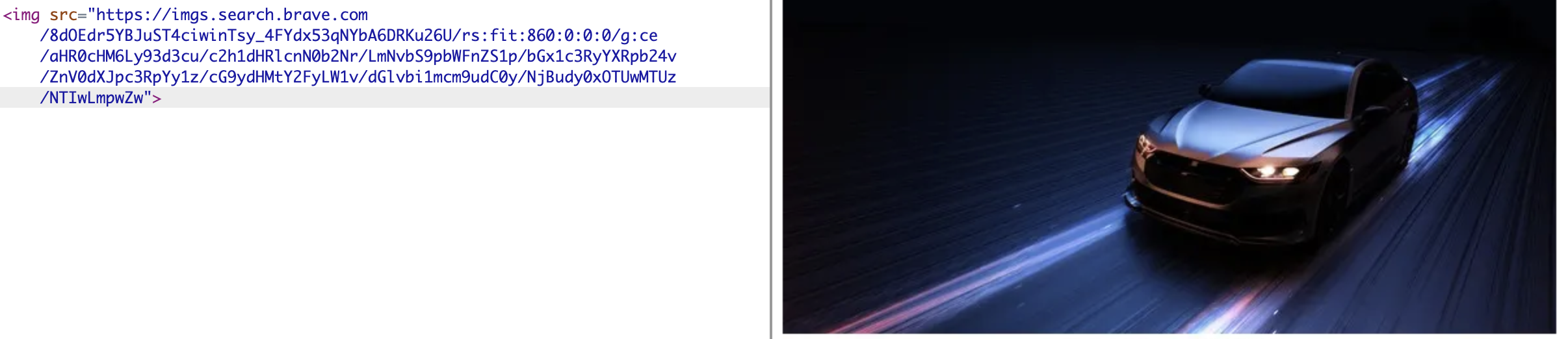
- Image tag - Used to add images to the web page. It is a self-closing tag.
<img src=””>
- Break Tag
<br>- Inserts line breaks between two lines.

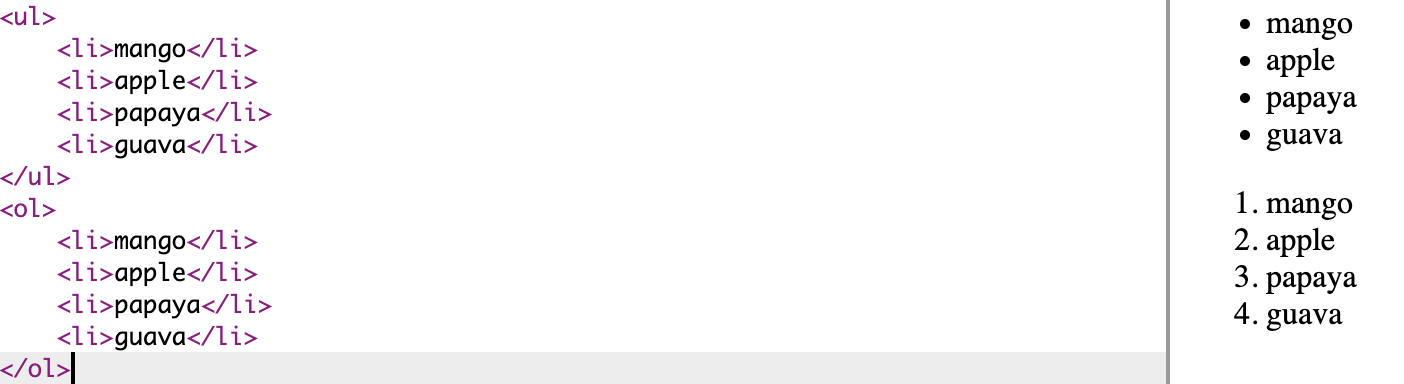
- List tag - To insert ordered and unordered lists.
Unordered list -><ul></ul>
Ordered list -><ol></ol>
Inspecting HTML in the browser
Every website you visit is built using HTML, CSS, and JavaScript. Browsers like Chrome, Firefox, or Edge have developer tools that let you look under the hood of a website. Using these tools, you can:
See the HTML structure of the page
View the CSS styles applied to elements
Debug JavaScript and network requests
Experiment with changes live without affecting the actual site
How to Inspect HTML
Right-click + Inspect
Right-click on any element on a webpage and select Inspect (or Inspect Element).
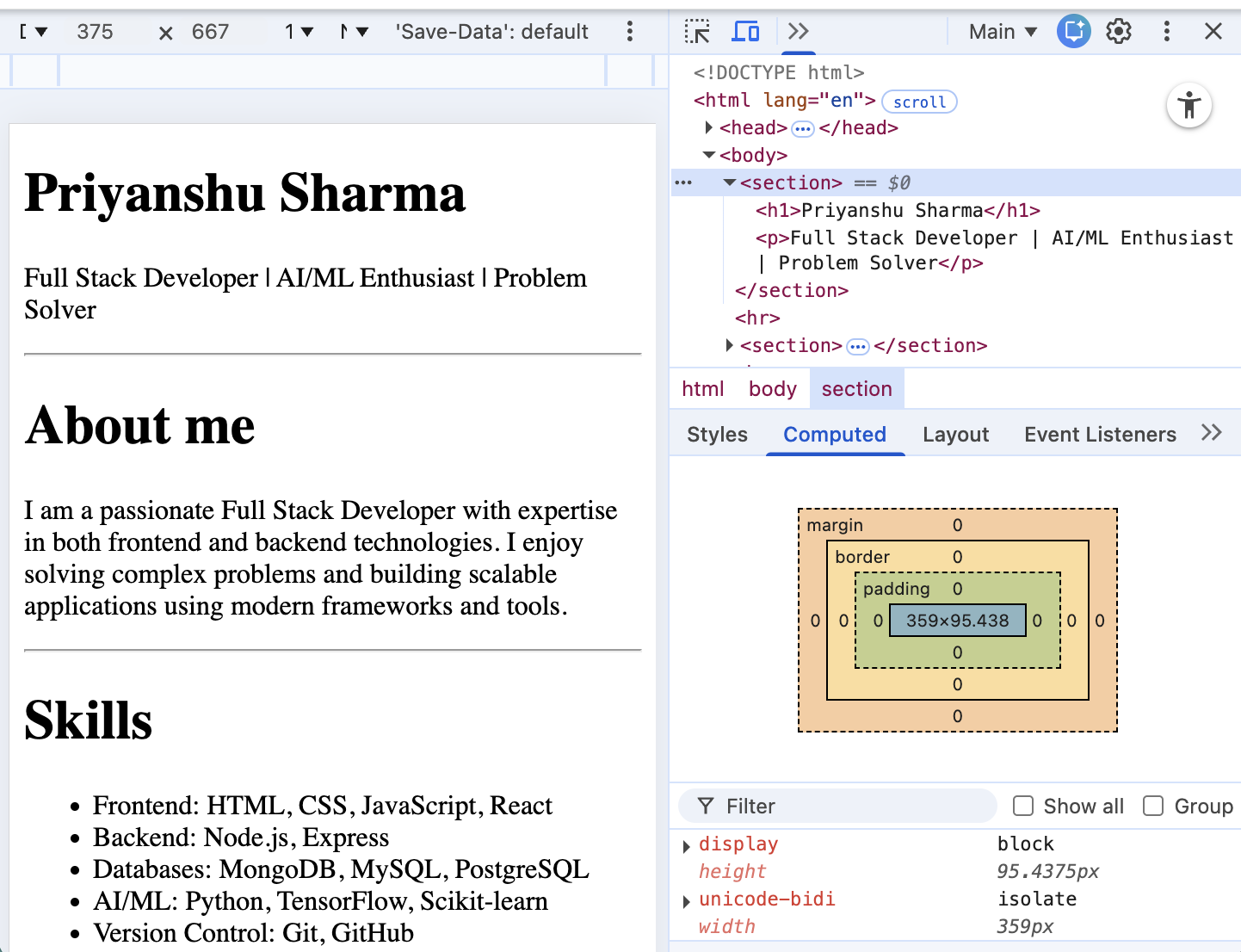
The developer tools panel opens, showing the HTML (DOM) on one side and CSS styles on the other.
Keyboard Shortcut
Chrome/Edge:
Ctrl + Shift + I(Windows) orCmd + Option + I(Mac)Firefox:
Ctrl + Shift + C(Windows) orCmd + Option + C(Mac)
Explore the DOM
The Elements/Inspector tab shows the HTML tree.
You can expand/collapse tags to see nested elements.
Hovering over tags highlights the corresponding element on the page.
Conclusion ->
HTML is the foundation of every web page, providing the basic structure and meaning for the content on the web. Just as a skeleton gives shape and support to the human body, HTML organizes text, images, links, and multimedia into a structured format that browsers can interpret.
Tags act as labels that instruct the browser on how to display content, while elements are the complete building blocks, combining tags with the content they enclose. Understanding the difference between tags and elements, along with the commonly used HTML tags like headings, paragraphs, images, lists, and line breaks, is essential for creating well-structured web pages.
By mastering HTML, developers gain the ability to define the skeleton of the web, upon which CSS adds style and JavaScript adds interactivity. It is the starting point for anyone looking to build functional, organized, and accessible websites.